
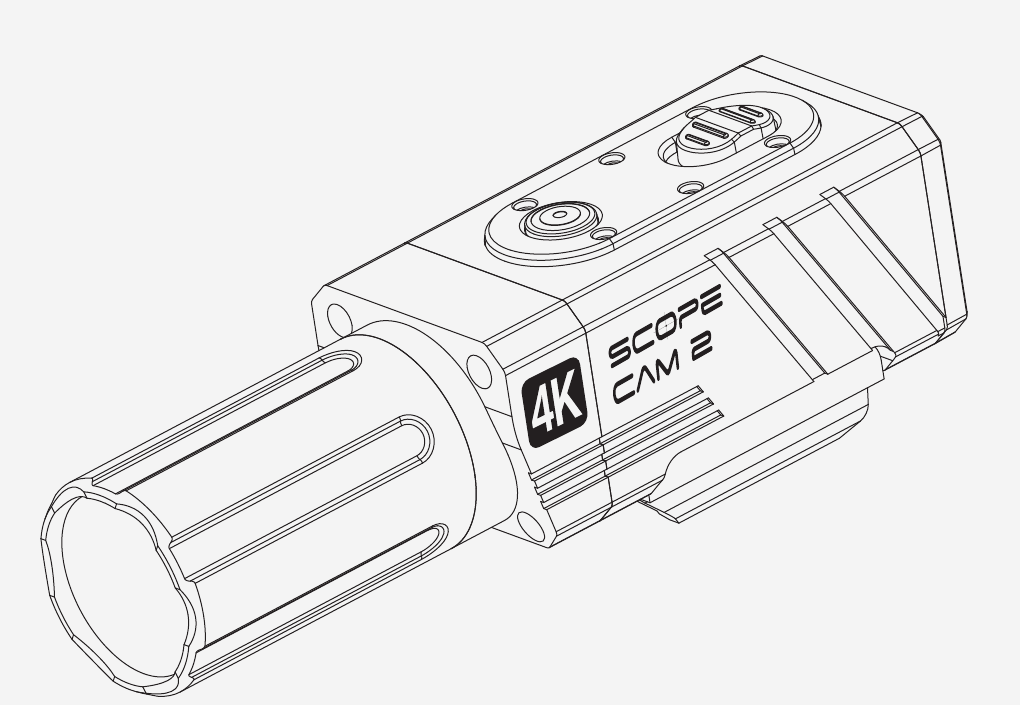
SCOPE CAM 2 4K ScopeCam 2 4K product drawing

User Manual

V2.0

1 / 9

Camera Diagram

1.0
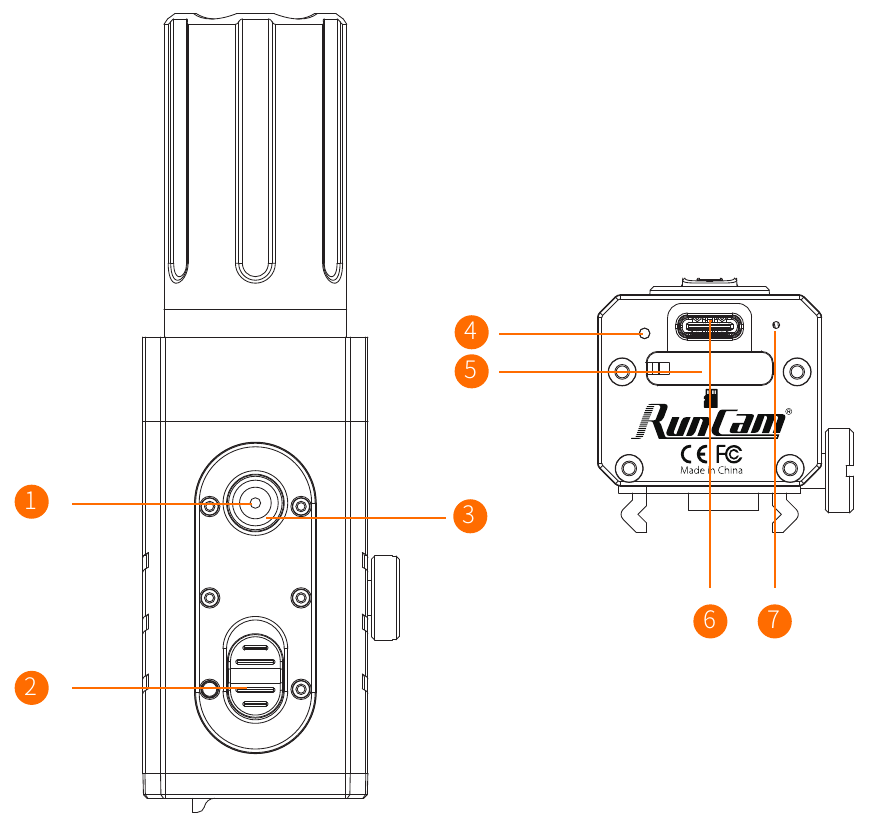
ScopeCam 2 4K camera diagram
No.DetailNo.Detail
1Wi-Fi Button5microSD Card Slot
2Power Switch6Type-C Port
3LED 1 (Recording / Wi-Fi)7Microphone
4LED 2 (Recording / Charging)
3 / 9

Usage Notes

1.1

Charging

  • The Type-C port supports DC 5V power input only. Please use a standard phone charger or power bank for charging.
  • During charging, LED 2 displays a green light. The green light turns off automatically once fully charged. Charging time: approximately 2 hours.

Low Battery Reminder

  • When the battery level is below 8%, the camera vibrates 4 times, with approximately 30 seconds between each vibration.

microSD Card

  • Supports microSD cards up to 256GB. High-speed memory cards are recommended (Class 10 / UHS-I / UHS-II / UHS-III).
  • For 4K recording, a U3-rated card is required for optimal performance.
Note:

Only FAT32 and exFAT file systems are supported. Formatting the microSD card on a PC/laptop before use is recommended.

4 / 9

Basic Operations

1.2
Power On & Auto Record

Insert a microSD card → Push the power switch up

  • Camera powers on and vibrates
  • Recording starts automatically
  • LED 1 & LED 2: slow red flashing
Power Off & Stop Recording

Push the power switch down

  • Recording stops
  • Camera vibrates and powers off
  • LED 1 & LED 2 turn off
Camera Wi-Fi

(Requires a properly inserted and recognized microSD card)

Device NameSC02-4K_*****Password1234567890

Enable Wi-Fi

Camera ON (Power switch up):

  • Press and hold Wi-Fi button (3s)
  • Camera vibrates and enters Wi-Fi mode
  • LED 1 flashes red & purple alternately → waiting for connection
  • LED 1 turns purple → connected

Camera OFF (Power switch down):

  • Press and hold Wi-Fi button (3s)
  • Camera powers on and vibrates, then enters Wi-Fi mode automatically
  • LED 1 flashes red & purple alternately → waiting for connection
  • LED 1 turns purple → connected

Disable Wi-Fi

  • Push power switch down → Wi-Fi off + camera powers off
  • Press and hold Wi-Fi button → Wi-Fi off + camera powers off
  • If powered on through Wi-Fi button: Push power switch up → Wi-Fi off + recording starts
Forced ShutdownCamera frozen → Press and hold Wi-Fi button (8s)
Abnormal StatusNo microSD Card / microSD Card Error: LED 1 & LED 2 flash red rapidly
5 / 9

Connection to Computer

1.3
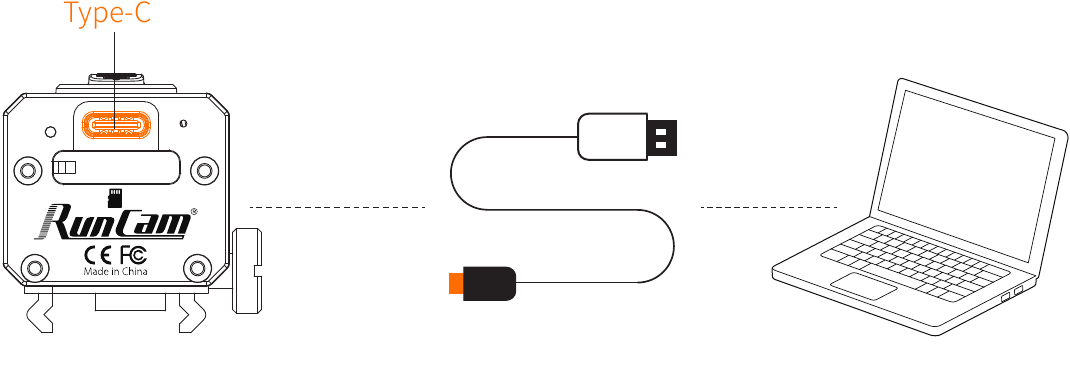
Type-C connection diagram

U Disk Mode

  • Insert a properly formatted microSD card into the camera. Connect the camera to a computer using a Type-C to USB cable, then power on the camera.
  • Camera vibrates 3 times
  • Enters U Disk mode automatically
  • LED 1: solid red

WEBCAM / PCCAM / UVC Mode

While the camera is connected to a computer and powered on: Short press the Wi-Fi button → enter WEBCAM / PCCAM / UVC mode. Short press again → switch between U Disk mode and WEBCAM mode.

Note:

If the computer does not recognize the camera: ensure the microSD card is inserted properly, ensure it is formatted as FAT32 or exFAT, and try a different USB cable or USB port.

6 / 9

App Connection

1.4
  • Press and hold the Wi-Fi button to enable Wi-Fi mode. LED 1 flashes red and purple alternately → waiting for connection.
  • On your mobile device, go to Settings → Wi-Fi and connect to: SC02-4K_****. Password: 1234567890. LED 1 turns purple → connected.
  • Disable mobile data and allow the RunCam Legacy App to access Location and Local Network permissions.
  • Disable VPN on your mobile phone if enabled.
  • Open the RunCam Legacy App and select the correct camera model to connect.

RunCam Legacy App Download

1.5

Android and iOS users can download the app in the following ways:

  • Search “RunCam Legacy” on Google Play or the App Store
  • Scan the QR code to download
RunCam Legacy App QR codes
  • Or visit the following page for app download links: https://www.runcam.com/download/scopecam24k
7 / 9

Firmware Update (If Necessary)

1.6

Firmware updates are not required for normal use. The camera is shipped with stable and up-to-date firmware.

If you experience specific issues or are advised by technical support, please proceed with a firmware update.

Before Firmware Update

  • Please ensure the camera is connected to a stable power source during the update process.
  • Firmware download page: https://runcam.com/download/scopecam24k

Firmware Update Steps

  • Download and extract the firmware package on a PC/laptop to obtain the SC024K.BRN firmware file.
  • Copy the SC024K.BRN file directly to the root directory of the microSD card. Do not place the file in any folder or rename the file.
  • Insert the microSD card into the camera and connect the camera to an external power source.
  • Turn on the camera using the power switch. The camera automatically detects the firmware file and begins the update process. During the update, LED 1 flashes purple.
  • The firmware update process usually takes several minutes. Please do not disconnect the power source or perform any other operations during the update. The camera powers off automatically once the update is complete.
8 / 9

Camera Specifications

1.7
FunctionParameter
Image SensorSONY CMOS 8MP 1/2.5’’
Lens35mm@FOV 8.2°; 25mm@FOV 12°; 3.6mm@FOV
ISO100 / 200 / 400 / 800 / 1600
Shutter1~1/500s
Resolution4K@30fps / 2.7K@60fps / 1080P@120fps / 1080P@100fps / 1080P@60fps / 1080P@50fps
Video FormatMP4(H.264)
microSD cardUp to 256GB
File SystemFAT32 / exFAT
Battery1400mAh
Battery LifeApprox. 240mins (1080P@60fps), Approx. 160mins (2.7K@60fps)
Charging TimeApprox. 120min
Wi-Fi2.4GHz
USB InterfaceType-C
Power Consumption1.25W (Wi-Fi Off)
Operating Temperature-10°C ~ 45°C
Housing MaterialAluminum Alloy & PA
Vibration MotorBuilt-in
Waterproof RatingIP64
MountPicatinny Rail
Weight35mm@198g; 25mm@188g; 3.6mm@178g
Dimensions35mm: 107mm*32mm*36mm; 25mm: 95mm*32mm*36mm; 3.6mm: 87mm*32mm*36mm
9 / 9